Account Details
In this section you will find how to:
Edit
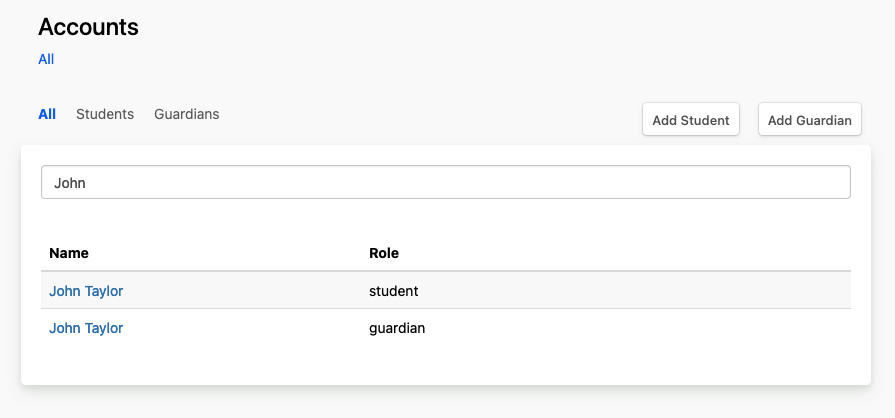
- Enter an account
nameoremail addressto find a student or a guardian in a search field - Press
Enter - Click on
nameto open student or guardian personal information
Personal information
You are able to see and edit student and guardian personal information
- Enter an account
nameoremail addressto find a student or a guardian in a search field - Press
Enter - Click on
nameto open student or guardian personal information
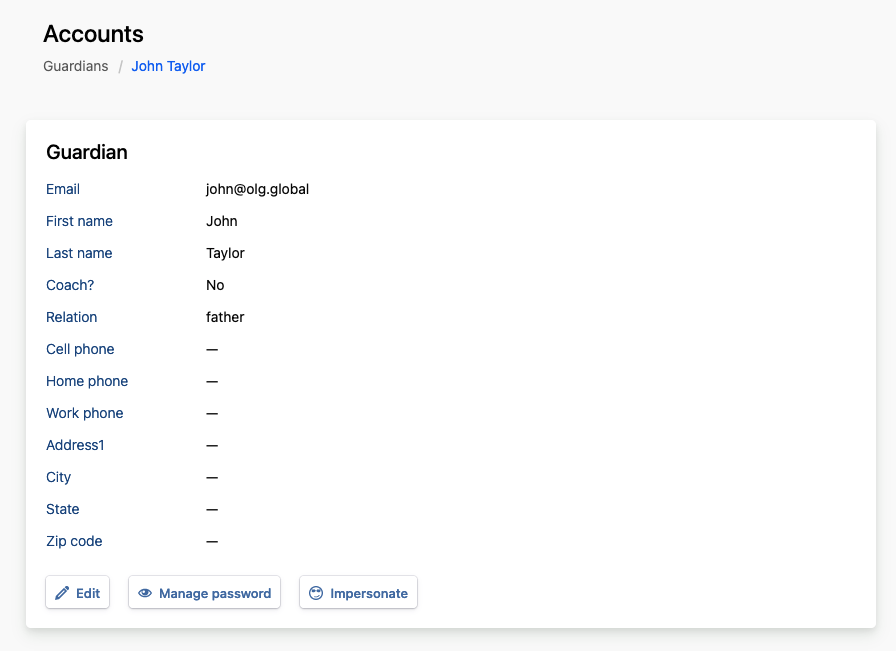
Impersonate guardian account to see platform from this user view, make changes if needed
Registrations
Only in students account detailed view you can see registration table if student has been asigned to a program. In registration table are information about all programs - follow active courses and payments.
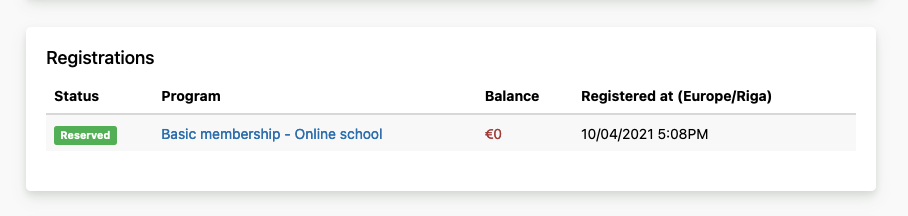
This section is not visible, if student is not assigned to any program.
See registration details
Find Registrations section in Account personal information and click on program name to open Program registration details.
Family
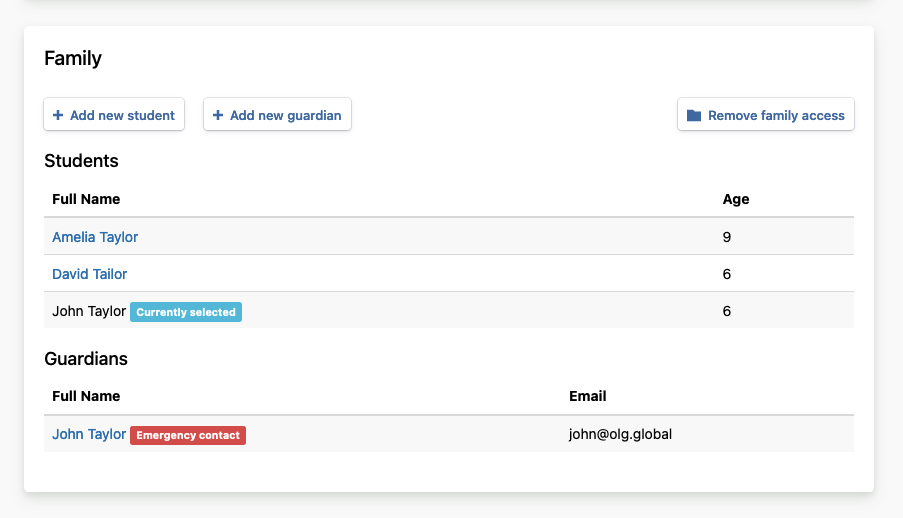
Guardian and student are considered as family. You can add multiple guardians and students to the family.
Add new family member
- Find family section in Account details:
Add new studentAdd new guardian
- Fill in all the information.
- Click on
Save.
Search for a family member and emergency contact
- Enter
nameoremail addressof student or guardian - Press
Enter - Select student or guardian name
- Go to
Familysection
Remove family access
One family can register in different platforms powered by Player Pathway. Remove family access means that this particular family information will be removed only in this platform.
Tip
You can add new student and guardian accounts also from Family section